
Timing (CTS) setup
Connect passively to Colorado Time Systems System 5/6 or Gen7 consoles, use the CTS wizard, inspect live frames, and handle console mismatches.
LaneCue taps your Colorado Time Systems (CTS) scoreboard feed read-only—it never transmits commands back to the timing console and cannot interfere with Hy-Tek Meet Manager.
Supported CTS consoles and serial settings #
| Console | Protocol | Baud & Framing | Notes |
|---|---|---|---|
| CTS System 5 / System 6 | Legacy | 9600 baud, 8E1 (Even parity) |
Passive RS-232 scoreboard tap via USB-to-Serial adapter (FTDI recommended) |
| CTS Gen7 | Gen7 | 115200 baud, 8N1 (No parity) |
Serial or TCP stream; isolated per pool |
Setup wizard #
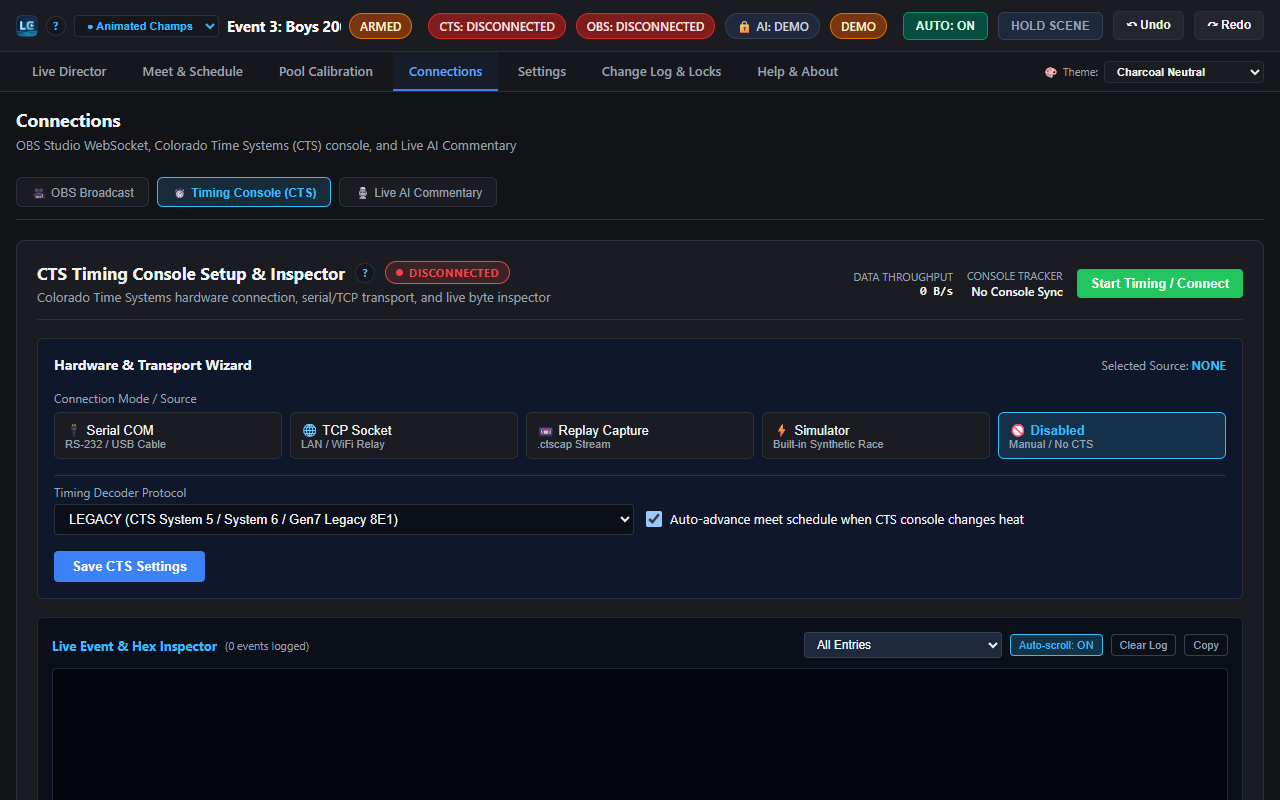
- Open Connections → ⏱️ Timing Console (CTS).
- Select your transport (Serial COM Port, TCP, Simulator, or
.ctscapReplay). - Choose System 5/6 (Legacy) or Gen7 and click Connect.
- Use the Live CTS Inspector panel to verify incoming packets and running clock updates.
CTS Gen 7 lane name mismatch warnings #
When connected to a CTS Gen 7 stream that sends swimmer names, LaneCue compares incoming lane names (normalizing "Last, First" vs "First Last", middle initials, diacritics, and truncation) against your active heat sheet without overwriting your database automatically:
- If a lane's name disagrees (for example, a Finals alternate steps onto the blocks before you re-import), an amber
⚠ CTS: ...badge appears on that lane in Live Director. - Click the badge to assign a matching swimmer from the meet roster (resetting
SCR/NStoOKand locking the lane), + Add as Walk-On Swimmer with the name pre-filled, or Dismiss Warning.
Console vs. schedule reconciliation #
If the timing console advances to a different event or heat than the one selected in LaneCue, the top bar displays a yellow CTS MISMATCH: Console on E<event> H<heat> pill with two buttons:
- [Sync]: Jumps LaneCue to match the console's current event and heat.
- [Ignore]: Keeps LaneCue on the currently selected heat until the next console change.
Dolphin watches and Meet Manager HTML results #
If you do not have a CTS serial feed, LaneCue can still display live results:
- Dolphin stopwatches: Drop
.do3,.d03,.do4,.d04, or.txtfiles into your watched folder (or import them in Meet & Schedule). - Hy-Tek Real-Time HTML: Enable Folder Watcher in Settings → 📊 Standards & Folders to ingest Meet Manager's
.htm/.htmlresults exports automatically.