AI commentary
Configure bring-your-own-key (BYOK) Gemini AI commentary, Booth Duo, announcement toggles, pronunciations, Voicemeeter routing, and privacy.
LaneCue can generate live play-by-play commentary and rolling captions using your own Google Gemini API key (BYOK).
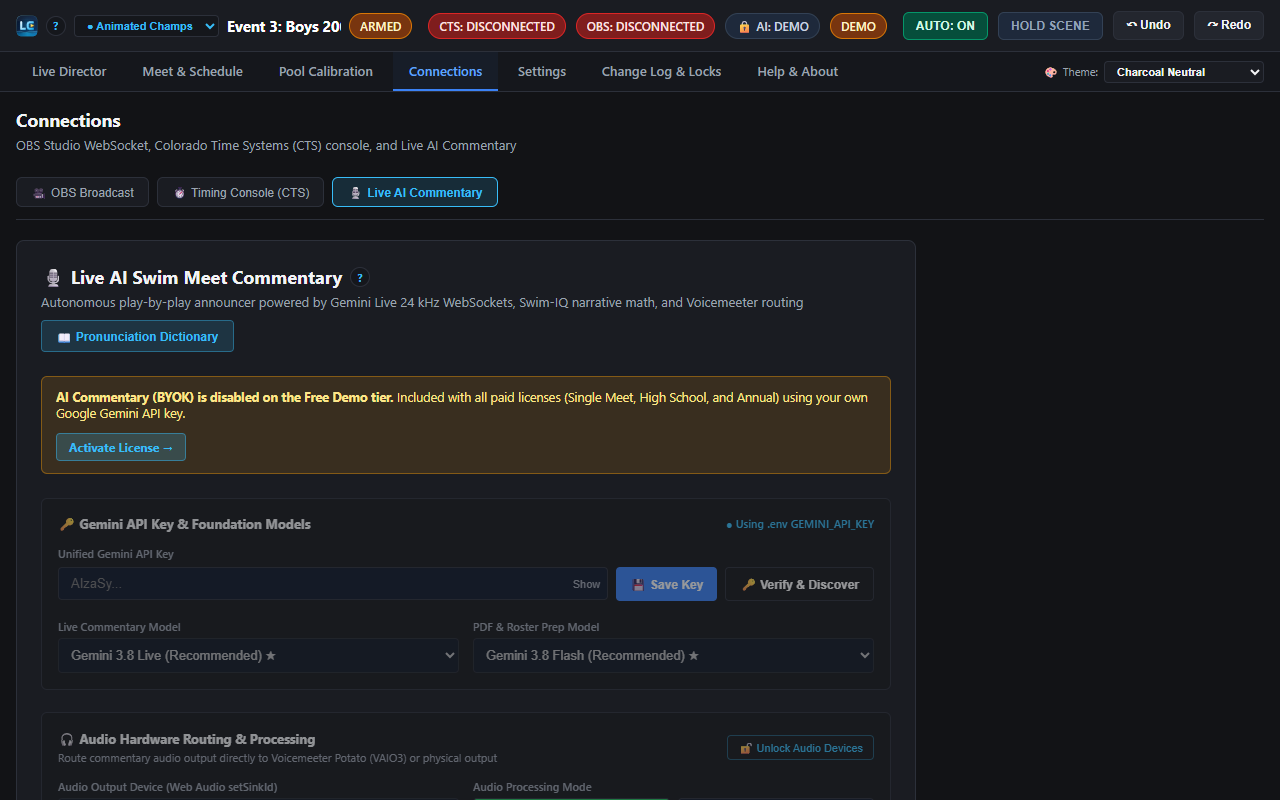
Paid tiers only: Live AI Commentary, Gemini PDF import fallback, and diving paper-sheet OCR require an active Single Meet, High School, or Annual license. In the free Demo tier, AI features are locked (🔒 AI: DEMO).
Setting up your Gemini API key (BYOK) #
- Obtain a Gemini API key from Google AI Studio.
- Open Connections → 🎙️ Live AI Commentary.
- Paste your API key and click Save / Verify.
- Choose your models—the default text/PDF/vision model is
gemini-3.8-flash.
Booth Duo, steering toggles, and pronunciations #
- Booth Duo: Pair a primary play-by-play voice with an analyst voice.
- Announcement steering: Independently toggle pre-race intros, post-start lane roster readings, intermediate split calls, finish calls, record/cut alerts, team scores, sponsor reads, diving cues, and analyst reactions.
- Pronunciations: Add custom phonetic spellings for swimmer or school names.
- Captions: Add
http://localhost:4780/overlay/captionsin OBS (or enable thecaptionslayer in/overlay/program).
Audio routing and the Spacebar kill switch #
- Route AI commentary audio to your headphones or a dedicated Voicemeeter virtual bus—never feed it into an OBS Browser Source.
- Press Space (Starter Hold) at any time to mute AI commentary immediately (
🔇 AI: HOLD).
Privacy and data sent to Google #
When BYOK AI features are enabled, LaneCue sends only the data needed for the active request—such as event names, swimmer/team names, seed/split/final times, or uploaded diving-sheet images—directly from your laptop to Google's Gemini API using your own key. API usage is billed directly by Google under your Gemini account.